
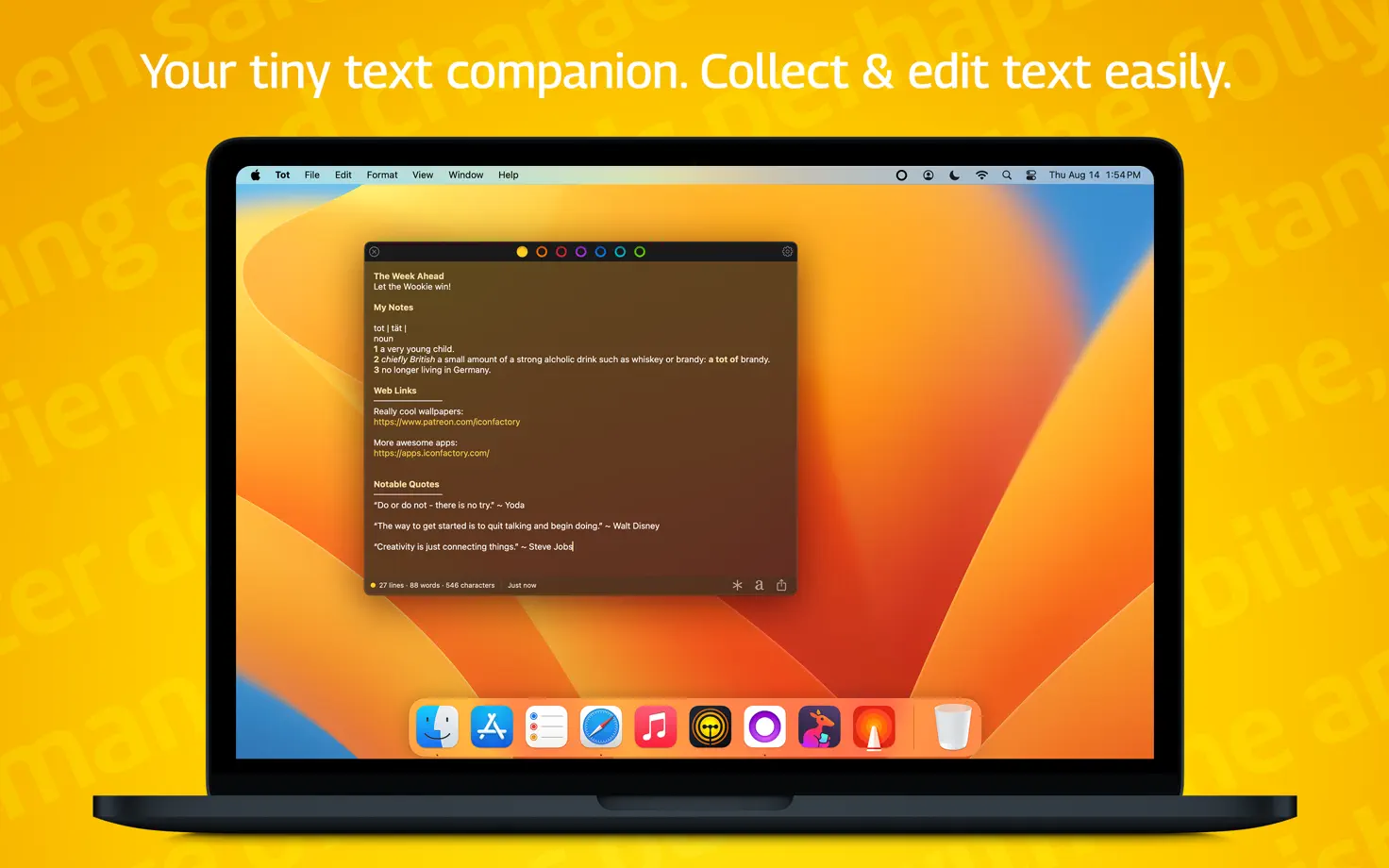
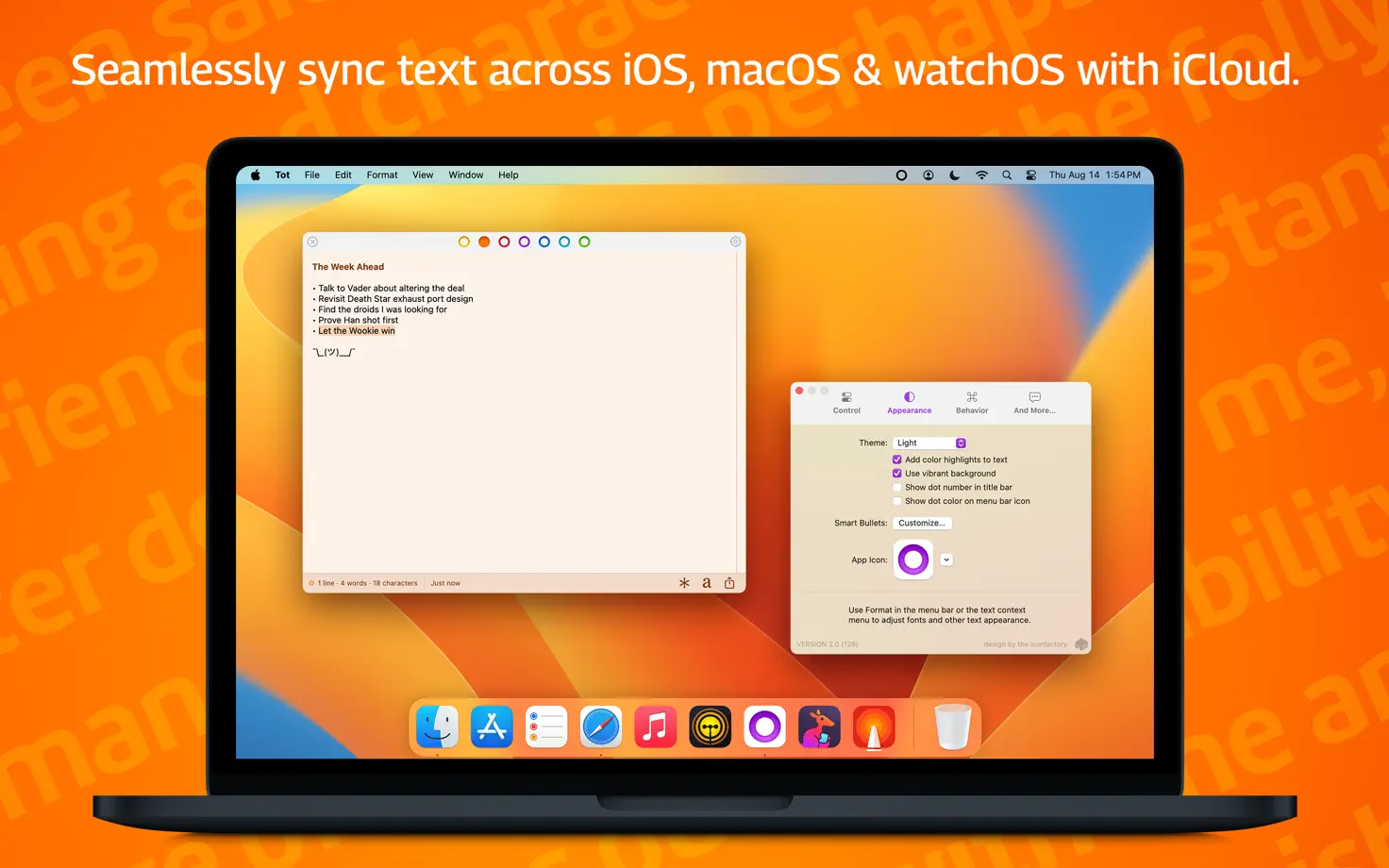
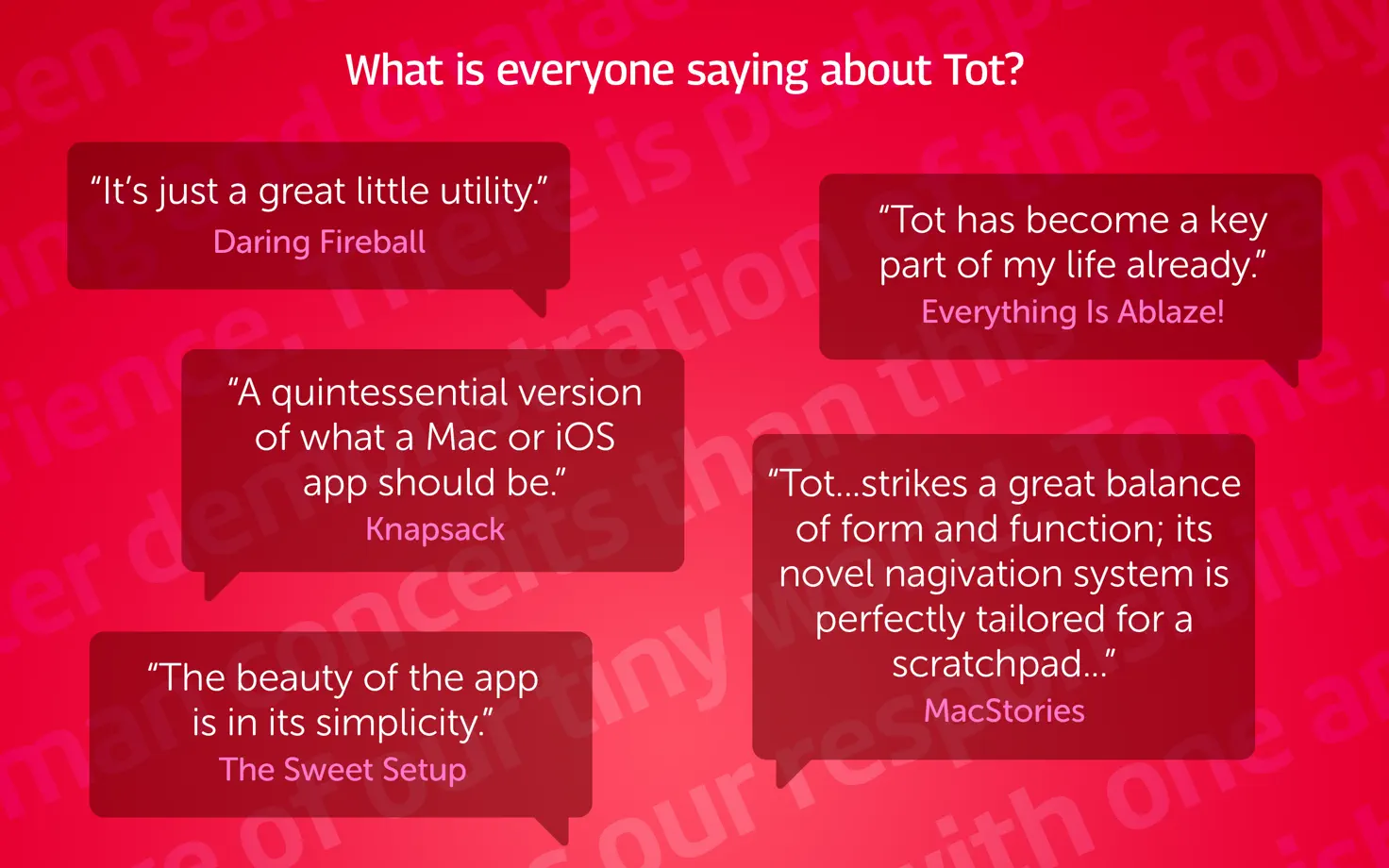
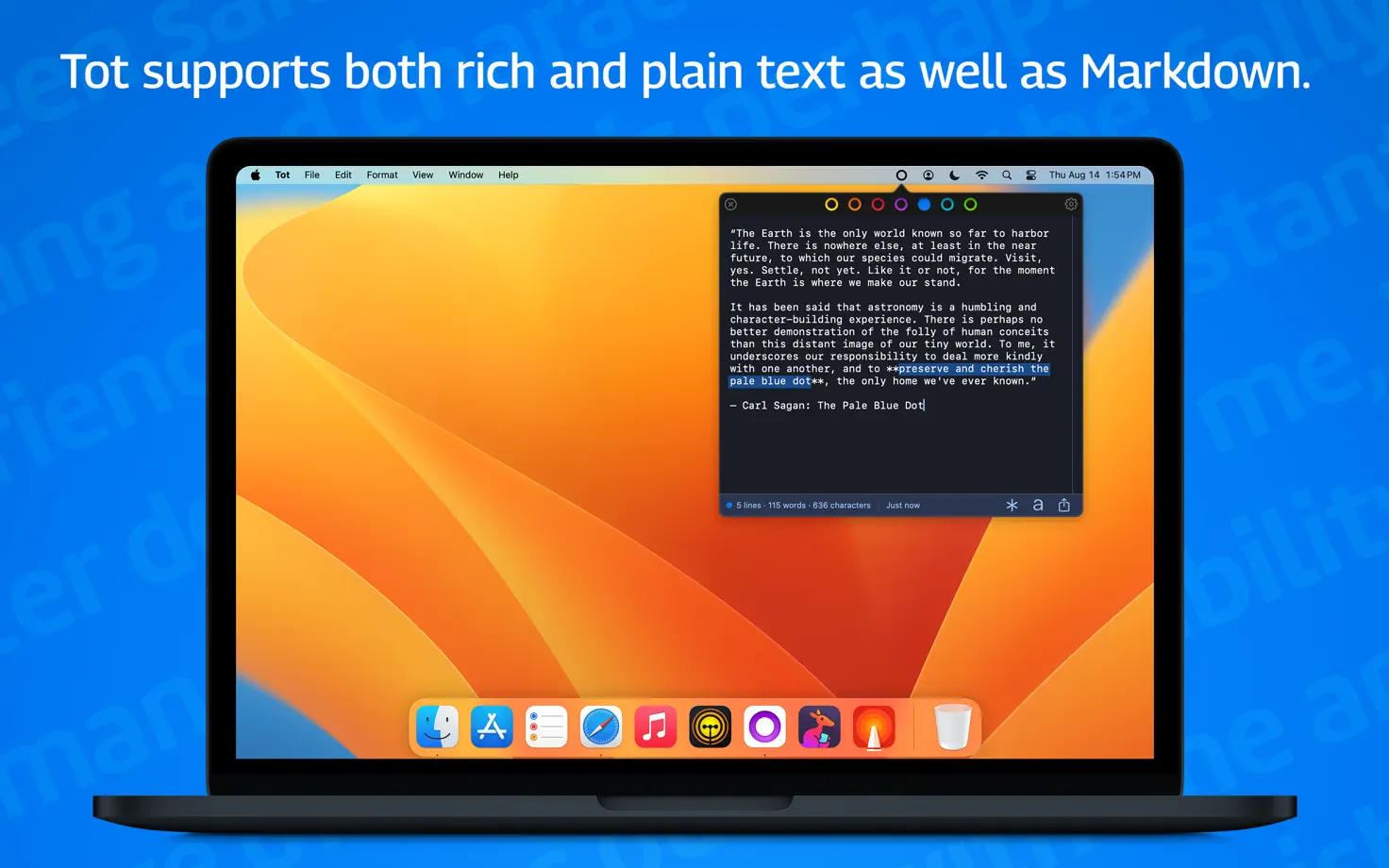
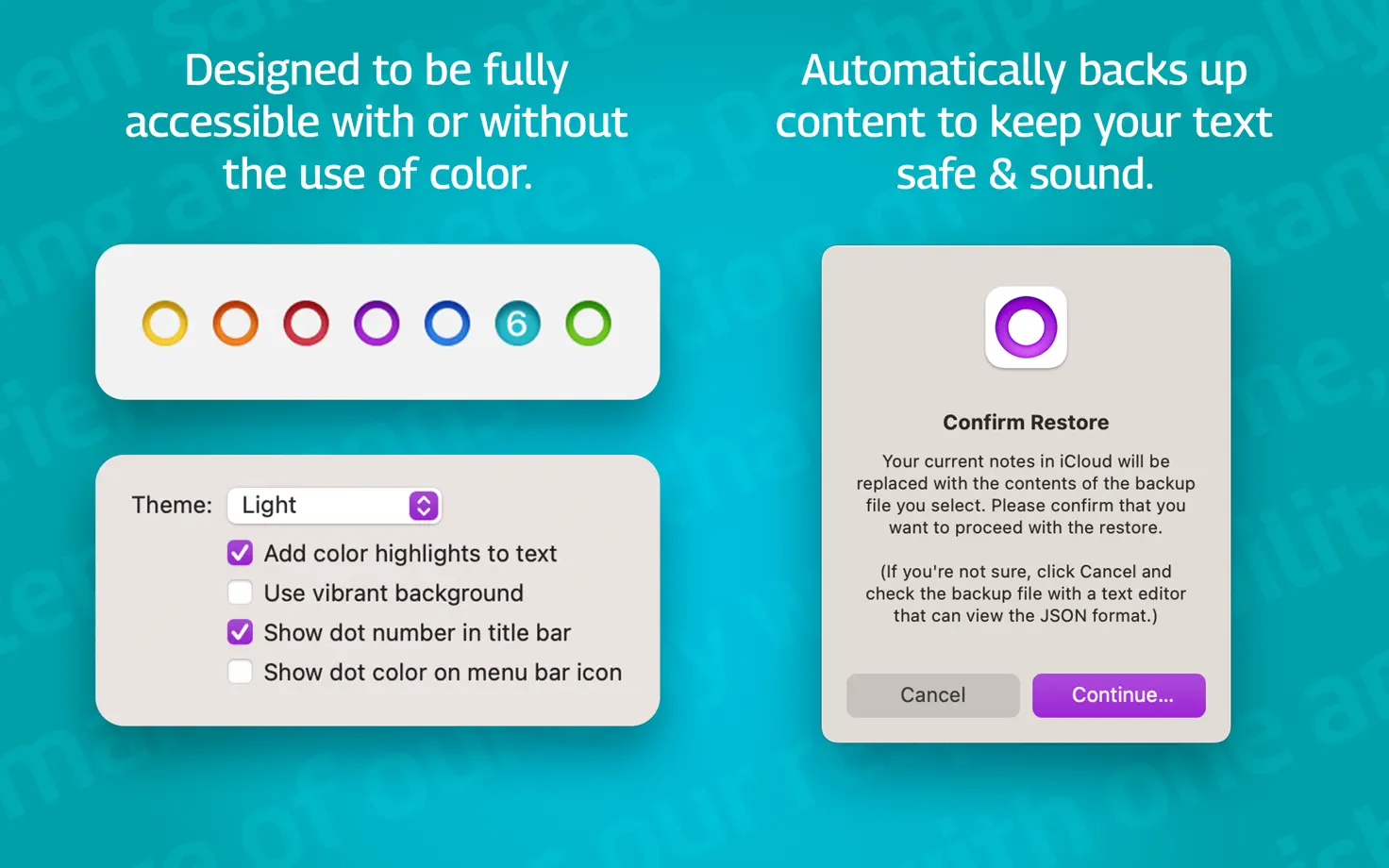
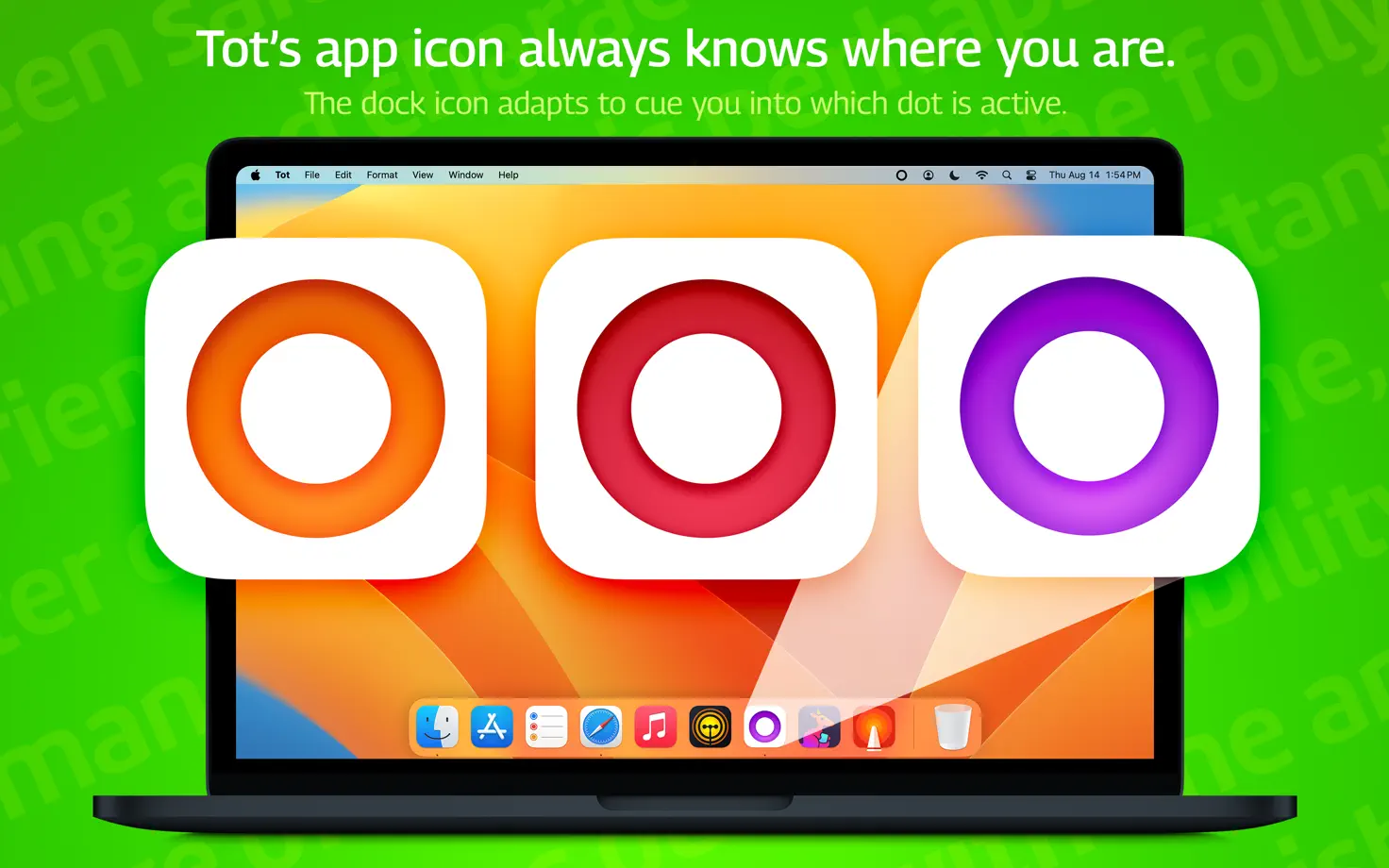
Frame-by-frame rainbow backgrounds with faint tiled text surround a MacBook, press-quote bubbles, emoji checklists and enlarged dot-colored app icons.

- Category
- Productivity
- Publisher
- The Iconfactory
- Version
- 2.1.1
- Approach
- Interface-led
What’s New
2.1.1
Action to toggle the formatting bar on/off, added a new rich text font choice, fixed What’s New appearing when it shouldn’t plus fixed some Tahoe bugs.
All:
• Tot’s What’s New view no longer appears when there’s nothing new
• Added "System (Monospaced)" as a rich text font choice
iOS:
• Added a toggle to turn Tot’s formatting bar on/off:
- Tap the Actions Menu (⋯) and toggle Format Bar
- Increases editing area on smaller devices
• Fixed an issue with Compact Dots button not working
macOS:
• Added “Display as Floating Window” back to menu bar:
- Shift-Command-F is default keyboard shortcut
- You can override shortcut in System Settings
• Added a partial workaround for bug on macOS Tahoe:
- Happens when presenting the popover window and the menu bar is hidden
- Fixed window that was too small and placed incorrectly
- There is still a nub that we can't fix: it's arrows displaying incorrectly
2.1
All:
• Added the classic “Tot 1.0” app icon
• Tab and Shift-Tab can now be used to indent or outdent selected text (on iOS this only works with hardware keyboard attached)
• Fixed issues with typing attributes, like bold and italic, being set incorrectly
• A number followed by a period is no longer recognized as a bullet
• Clarified wording for premium features on purchase screens
macOS:
• The Show Window keyboard shortcut control is accessible via VoiceOver
• Improved VoiceOver accessibility of various Settings screens
• Added support for incremental text search
iOS:
• Added support for Liquid Glass
• Settings > Advanced Settings > Reset Theme will clear custom dot colors set on Mac
• Fixed issues with the iOS widgets when using colored/clear tints
• The Done button in Settings is now more visually prominent
watchOS:
• Added support for Liquid Glass
• Tapping Clear All Text now syncs the dot’s text changes correctly
2.0
Tot 2 adds fun, customizable smart bullets, new text dividers, improved text handling, automatic iOS data backup, a re-designed UI, improved settings, bug fixes, and much more.
App-Wide Improvements:
• Custom Smart Bullets:
- Assign symbols or standard emoji to act as Smart Bullets
- Create up to five(?) custom smart bullets via Settings > Behavior
- Assign Custom Smart Bullets to Quick Key slots for instant access
• Text dividers:
- Eight divider styles to choose from via the symbol picker
- Assign text dividers to Quick Key slots for easy use
- Keyboard shortcut: Ctrl-Minus to add a new divider
- Dividers can be cut/copy/pasted at will
- Uses Markdown horizontal rules
- [Yay Funk_Shui & Stragen!]
• Automatic indents:
- Lines that begin with a bullet or Smart Bullet will automatically indent text that's wider than the window
- The Cmd-[ and Cmd-] keyboard shortcuts can be used to indent any selection
- Lines that begin with a space will use that for indentation, otherwise tabs are used
- Works with plain text: great for writing in Markdown [Yay Gruber!]
• Improved text handling & bug fixes:
- Paste as Plain Text can now strip Markdown and works better with rich text
- Fixed a bug where bold stuck around after creating newlines [Yay Nathan!]
- Improved handling of styling information while using drag & drop
- Fixed a styling bug when pasting Smart Bullets in plain text mode
- Fixed a big bug when opening links beginning with “HTTP”
- New "Selected Dot" action for Shortcuts [Yay pseudometa!]
• Updated User Manual
- Removed Twitter links because screw those guys
- Updated for new features and settings
- Added information and links for advanced users
macOS Improvements:
• Updated Settings:
- Settings now open in their own popover / window
- Settings re-designed for improved clarity and feature discoverability
- Control: New option – invoke Tot via Both the Menu Bar and Dock Icons
- Appearance: New vibrant background option, dot configuration, app icons
- Behavior: Floating window, follow mouse, disable escape key
- Links to download for iOS and watchOS
- Better help links and support site access
• Improved Editing:
- Typing completions: Turn on Edit > Spelling & Grammar > Check Spelling While Typing + Correct Spelling Automatically
- Smart Copy/Paste now stays disabled across launches [Yay Dustin!]
- Added menu item for Remapping Keyboard Shortcuts
• Window, Dock, and menu bar:
- Added support for using both the Dock and menu bar icons at the same time
- Added a setting to show selected dot color in menubar [Yay Tom!]
- Better handling of smart icons (now works with all app windows)
- Improved restoring window state when using menu bar and smart icons
- Tot will only enter full screen mode when using Dock or Both icons
- Tot can now appear over full screen windows
- Fixed issues with icons stuck in Dock [Yay Ilia!]
• Fixed issues using Cmd-1 to 7 on Czech keyboards [Yay Roman!]
• Improved handling of page margins when printing [Yay Dan!]
• What’s New video no longer shows in Now Playing (on macOS)
• Updated iOS and watchOS to match improvements above
1.5.1
All:
• Fixed crashes caused by Windows CRLF line endings in plain text [Yay Tim!]
macOS:
• Added “Hotkey Window Follows Mouse” to Window menu: repositions window under mouse when Show Window hotkey is used [Yay Alex!]
iOS:
• Fixed new “Dot” icons on iPad
• Empty plain text dots are now initialized correctly [Yay Adrian!]
watchOS:
• The text input help is only shown once [Yay Vatsal!]
1.5
Greater control when creating and editing Smart Bullets, find and print text, improved layout control, and a new watch app to put Tot on your wrist!
All:
• Added keyboard shortcuts for Smart Bullets [Yay MrStaggs!]
- Control-8 to create a Smart Bullet on the current line
- Command-8 to toggle Smart Bullet on current line
- The last Smart Bullet you picked will be used
- Use the keyboard combo to create a normal bullet (Option-8) as a reminder
• Added printing support
- On macOS, use the File menu
- On iOS, use Print at the end of the Edit menu
• Added setting to adjust line height [Yay David!]
- macOS: Format menu > Line Spacing > Standard → 30% increase
- iOS: Settings > Text & Layout > Standard → 30% increase
• New “Dot” app icon choice in Settings to match new watchOS app (see below)
iOS:
• Added support for standard Find behavior in iOS 16
- In Edit menu, use Find or Find Selection
- To replace text, tap on magnifying glass and select Find & Replace
• Added key clicks and haptic feedback on keyboard controls and Quick Keys
- To turn on haptics, use Settings > Sounds & Haptics > Keyboard Feedback
• Improved Edit menu layout and behavior
• Fixed a bug where text wouldn't save properly when Tot was launched from a widget [Yay Harrie!]
macOS:
• Added a command-line option to disable automatic backups:
% defaults write com.iconfactory.Tot disableAutomaticBackups 1
• Using Cmd-0 to select an empty dot is now disabled if no dots are available [Yay Gruber!]
• Updated status bar icon to be more consistent in size and spacing
• The Settings icon now indicates its state more clearly
watchOS:
• New app that takes Tot’s mobility to a new level!
- Available as a separate purchase on your watch’s App Store
- Shows the contents of all your dots
- Add text with dictation, Scribble, and other text input
- Changes sync between macOS, iOS, and watchOS
- NO general editing of text due to watch limitations
1.4
All:
• Smart Bullets:
- Perfect for creating TODOs and checklists
- Click or tap on a Smart Bullet to toggle its state ON/OFF
- Bullets are normal text that you can copy & paste into other documents
- Easy to share Smart Bullet lists as plain text
- Optimized for both platforms:
macOS: Pick Smart Bullet using * button in status bar
iOS: Set which Smart Bullet to use via Quick Keys in Settings
- Check out What’s New in Help for a video overview and more info
macOS:
• Fixed a crash when viewing plain text in Help [Yay Terry!]
• Fixed a problem with popover window not appearing over a full screen window [Yay Adrian!]
• Added “Paste and Match Style” [Yay sharprichnorth!]
• Fixed an issue displaying links on the most recent version of macOS
iOS:
• Support for Widgets:
- Multi-dot for viewing a summary of all of your dots [Yay Everyone!]
- Single dot for viewing a snippet of a configured dot [Yay and their dog!]
- Widget content can be updated via iOS Shortcuts
• Links now open directly in Tot:
- Use Settings to turn this feature off and open links in Safari instead
• Improved pointer interactions on iPadOS when using a trackpad
• Fixed current selection in character picker
1.3
All:
• Added support for Shortcuts:
- Commands to get, set, or show text from any dot
- Query a dot to get text counts, modification date, JSON dictionary, and more
- Works great as scratchpad to collect input for a Shortcut
- Also a convenient way to save text that has been processed
- Same actions on macOS and iOS, allowing shared workflows
macOS:
• New “Control With” setting – Smart Icons:
- Use Tot's menu bar icon to display a popover window
- Detaching the popover window shows Tot's app icon in the Dock
- Select Tot with Command-Tab keys and access menu bar options [Yay Elsie!]
- Tot's Dock icon disappears when its window is closed
• Improved window behavior when changing Dock and menu bar settings
• Added caching to speed up Font menu (both in menu bar and context menu) [Yay Allen!]
• Reminder about the iOS app isn’t shown on first few runs
• Hovering over a dot now displays its number as a helpful tooltip
iOS:
• Increased contrast of unused dots in dark mode [Yay Mark!]
1.2.4
• Local backups of iCloud data are now done automatically:
- View latest backups with File > Show Automatic Backups
- Backups are JSON files encoded in UTF-8
- Restore a backup with File > Restore Backup…
- Backups are updated as needed every hour
• Increased contrast of unused dots in dark mode [Yay Mark!]
• Keyboard shortcuts like ⌘G now work correctly while Find panel is displayed [Yay Ben!]
• Improved compatibility with Bartender [Yay Michal!]
Listing history
Kit checks this listing every day, most recently on 26 Nov 2026. Changes to its screenshots, icon, subtitle, videos and events will show up here.
Compare with


Browse similar
Source: App Store listing by The Iconfactory, United States storefront. Captured 26 Nov 2026. The artwork belongs to its publisher and is shown here for reference.